

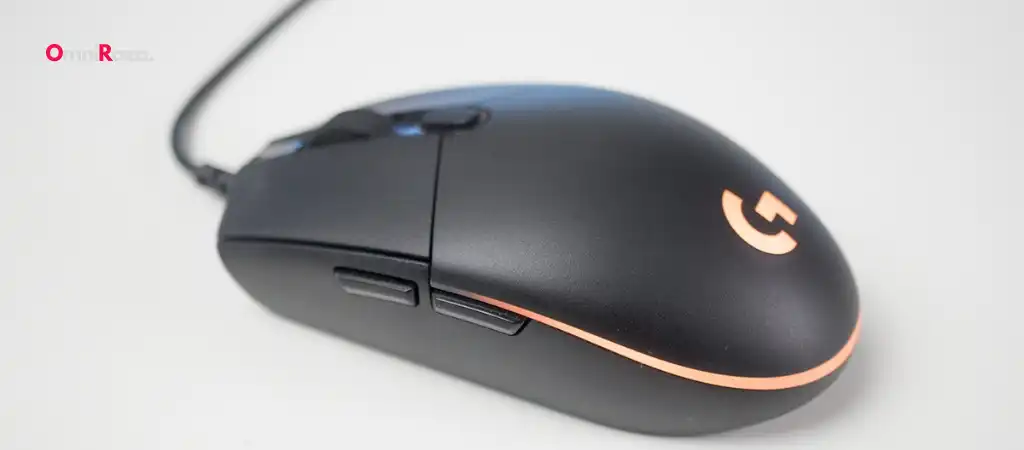
The “DPI of the G203 Prodigy” is a frequently discussed topic among gamers and tech enthusiasts. DPI, or “dots per inch,” is a crucial specification for any gaming mouse, determining its sensitivity and how it translates movement from the hand to the screen.
In this guide, we will explore the DPI of the G203 Prodigy in detail, covering everything from its importance in gaming to how you can adjust and optimize it for your needs, making it a strong contender for the best budget gaming mouse.

What is DPI and Why Does it Matter?
DPI
DPI stands for Dots Per Inch. In the context of a gaming mouse like the G203 Prodigy, it refers to how many pixels the cursor moves on the screen for every inch the mouse is moved physically. A higher DPI means the cursor will move faster across the screen, while a lower DPI provides more precise control but slower movement.
The Importance of DPI in Gaming
For gamers, DPI is more than just a technical specification. It directly impacts gameplay, influencing how fast and accurately a player can aim, shoot, or move in-game. A high DPI setting might be advantageous for fast-paced games where quick reflexes are crucial, whereas a low DPI is often preferred in games requiring precise aiming, such as first-person shooters (FPS).
The DPI of the G203 Prodigy
Default DPI Settings
The G203 Prodigy is equipped with a sensor capable of adjusting between various DPI settings. By default, the G203 Prodigy comes with five DPI settings pre-configured:
- 200 DPI
- 400 DPI
- 800 DPI
- 1600 DPI
- 3200 DPI
These settings provide a wide range of sensitivity options suitable for different types of gaming and general computer use.
Maximum and Minimum DPI
The G203 Prodigy supports a DPI range from 200 to 8,000 DPI. This range allows users to customize their mouse sensitivity to an extreme degree, ensuring that it can be tailored to any gaming scenario, whether you need the slow precision of 200 DPI or the rapid movement of 8,000 DPI.
DPI Adjustability
One of the standout features of the G203 Prodigy is its on-the-fly DPI switching capability. The mouse features a DPI button located just behind the scroll wheel, allowing users to cycle through the preset DPI levels without needing to pause their game or access software settings. This feature is especially useful for gamers who need to switch between different sensitivity levels quickly during gameplay.
How to Adjust the DPI of the G203 Prodigy
Using the DPI Button
As mentioned earlier, the G203 Prodigy has a DPI button that lets you switch between preset DPI levels. By default, this button toggles between the five preset DPI settings mentioned earlier. However, these presets can be customized using the Logitech G HUB software.
Customizing DPI Settings with Logitech G HUB
Logitech G HUB is the software used to customize various aspects of the G203 Prodigy, including its DPI settings.
Here’s how you can adjust the DPI:
-
Download and Install Logitech G HUB
If you haven’t already installed the software, you can download it from Logitech’s official website.
-
Connect Your G203 Prodigy
Ensure your G203 Prodigy is connected to your computer.
-
Open Logitech G HUB
Launch the software and select your G203 Prodigy from the list of connected devices.
-
Navigate to DPI Settings
In the G HUB interface, look for the DPI settings tab. Here, you can adjust the DPI levels to your preference.
-
Customize DPI Levels
You can set up to five different DPI levels, which can be cycled through using the DPI button on the mouse. You can also adjust the increments between each level.
-
Save Your Settings
Once you’re satisfied with your DPI levels, save the settings. Your G203 Prodigy will now operate with the new DPI configurations.
DPI Shift and Sniper Button
While the G203 Prodigy doesn’t come with a dedicated sniper button like some other gaming mice, you can still use the DPI shift feature to temporarily lower the DPI for precision aiming. This can be particularly useful in FPS games where precise aiming is required. You can assign a button on the mouse to act as a DPI shift, lowering the DPI to a pre-defined level when held down.
Optimizing DPI for Different Games
FPS Games
In first-person shooter (FPS) games, precision is key. Many professional gamers prefer a lower DPI setting, often between 400 and 800 DPI. This allows for more accurate aiming, especially when targeting opponents at long distances. However, some players might opt for higher DPI settings if they are more comfortable with faster cursor movement.
MOBA and RTS Games
For Multiplayer Online Battle Arena (MOBA) and Real-Time Strategy (RTS) games, a higher DPI setting might be more suitable. These games often require quick navigation across the map, selecting units, and issuing commands in rapid succession. A DPI setting between 1600 and 3200 is commonly used in these genres.
RPG and Adventure Games
In Role-Playing Games (RPGs) and adventure games, the DPI setting can vary widely based on the player’s preference and the game’s requirements. Some players might prefer a lower DPI for precise character movement, while others may opt for higher DPI for quicker camera rotation and interaction with the game environment.
Customizing DPI for Specific Games
One of the advantages of the G203 Prodigy is the ability to customize DPI settings for specific games. Using the Logitech G HUB software, you can create profiles for each game, with tailored DPI settings that load automatically when the game is launched. This ensures you always have the optimal sensitivity for each gaming session.
Additional Features Related to DPI
Polling Rate
The G203 Prodigy also offers a polling rate of 1000 Hz (1 ms), which complements its DPI capabilities. The polling rate is how often the mouse reports its position to the computer. A higher polling rate results in smoother and more responsive cursor movement, especially when paired with higher DPI settings.
Sensor Accuracy
The G203 Prodigy is equipped with a Mercury sensor, known for its accuracy and responsiveness. This sensor ensures that the DPI settings you choose are consistent and reliable, providing precise tracking that’s essential for competitive gaming.
DPI Indicator
The G203 Prodigy includes an LED DPI indicator that lets you know which DPI setting you are currently using. This visual cue can be helpful, especially when you’re switching between DPI levels in the heat of a game.
DPI of the G203 Prodigy: Pros and Cons
Pros
-
Wide DPI Range
The G203 Prodigy’s DPI range of 200 to 8,000 DPI allows for extreme customization, suitable for any gaming style.
-
On-the-Fly DPI Switching
The ability to switch DPI levels quickly using the dedicated button is a significant advantage during gaming.
-
Software Customization
Logitech G HUB offers extensive customization options, including the ability to create game-specific profiles.
Cons
-
Limited Hardware Customization
While the G203 Prodigy offers extensive software customization, it lacks some of the hardware features found in higher-end gaming mice, such as a dedicated sniper button or additional side buttons for more complex commands.
-
No Adjustable Weight
The G203 Prodigy does not allow for adjustable weights, which might be a drawback for gamers who prefer a heavier mouse.
You Might Be Interested In
- How Does GPU Processing Work?
- Why are Wireless Gaming Mouse So Expensive?
- What Are The Main Components Of a CPU?
- What Is The Function Of Tecknet Mouse?
- Which Is Better Razer Or Cooler Master Mouse?
Conclusion
The “DPI of the G203 Prodigy” is a critical aspect that makes this mouse a versatile choice for gamers. With a DPI range of 200 to 8,000, it offers a wide spectrum of sensitivity settings, catering to various gaming styles and preferences. The ability to customize these settings through Logitech G HUB adds another layer of flexibility, ensuring that the mouse can be tailored to meet the specific needs of each game or user.
While the G203 Prodigy may lack some of the advanced hardware features of higher-end gaming mice, its DPI capabilities and the overall performance make it a solid choice for both casual and competitive gamers. Whether you’re navigating a sprawling RPG, competing in an intense FPS, or managing armies in an RTS, the G203 Prodigy provides the sensitivity and precision needed to enhance your gaming experience.
By understanding and optimizing the DPI of the G203 Prodigy, gamers can achieve better control, accuracy, and ultimately, better results in their gameplay.
FAQs about Dpi Of The G203 Prodigy?
What is the default DPI setting of the G203 Prodigy, and can it be customized?
The G203 Prodigy comes with five default DPI settings: 200, 400, 800, 1600, and 3200 DPI. These settings allow users to quickly switch between different sensitivity levels, which are suitable for various gaming scenarios and everyday computer tasks. However, if the default settings do not match your preferences or gaming needs, they can be fully customized using Logitech G HUB software.
With Logitech G HUB, you can adjust the DPI levels to any value within the range of 200 to 8,000 DPI. The software allows you to set up to five different DPI levels, which you can cycle through using the DPI button on the mouse. This feature is particularly useful for gamers who play a variety of games, as it allows them to fine-tune the mouse sensitivity for each game.
How do I change the DPI settings on the G203 Prodigy during gameplay?
The G203 Prodigy is equipped with an on-the-fly DPI switch button located just behind the scroll wheel. This button allows you to quickly change between preset DPI levels without having to pause your game or access any software settings. By default, the button cycles through the five pre-configured DPI settings, but these can be customized to your liking using Logitech G HUB.
To change the DPI during gameplay, simply press the DPI button. Each press will shift the DPI setting to the next level in the sequence you have configured. If you want more control over which DPI levels are available during gameplay, you can adjust the settings in Logitech G HUB, setting the exact DPI values you want to toggle between.
What DPI range does the G203 Prodigy support, and what does this mean for different gaming styles?
The G203 Prodigy supports a DPI range from 200 to 8,000 DPI. This wide range allows users to customize the mouse sensitivity to suit different gaming styles and preferences.
- Lower DPI (200 – 800 DPI): Ideal for first-person shooter (FPS) games where precision aiming is critical. A lower DPI provides finer control, allowing for more accurate shots.
- Mid-range DPI (800 – 1600 DPI): Suitable for a balanced gameplay experience across various genres, including RPGs, strategy games, and action-adventure games. This range offers a good mix of speed and precision.
- Higher DPI (1600 – 8,000 DPI): Best for fast-paced games such as MOBAs or RTS where quick cursor movement across the screen is necessary. Higher DPI settings enable rapid navigation and quick reactions, which can be crucial in competitive play.
The ability to adjust DPI within such a broad range makes the G203 Prodigy versatile, allowing gamers to adapt their mouse sensitivity to any game type or personal preference.
Can I set up different DPI profiles for different games on the G203 Prodigy?
Yes, you can set up different DPI profiles for different games using the Logitech G HUB software. Logitech G HUB allows you to create and manage multiple profiles, each with its own DPI settings and button configurations. These profiles can be linked to specific games or applications, so the correct settings load automatically when you start the game.
To set up different DPI profiles:
- Open Logitech G HUB: After installing the software, connect your G203 Prodigy and select it from the device list.
- Create a New Profile: Navigate to the profiles section and create a new profile. Name it according to the game or application you want to customize.
- Customize DPI Settings: Adjust the DPI levels specifically for that game, ensuring the mouse sensitivity matches your gameplay needs.
- Assign the Profile to a Game: Link the profile to a specific game so that it activates automatically when the game is launched.
This feature ensures that you always have the optimal sensitivity and settings for each game, without needing to manually adjust the DPI every time you switch between different titles.
What is DPI Shift, and how can I use it with the G203 Prodigy?
DPI Shift is a feature that allows you to temporarily change the DPI setting of your mouse while holding down a specific button. This is particularly useful in scenarios where you need different sensitivity levels within the same game. For instance, you might want a lower DPI for precise aiming (such as sniping) and a higher DPI for regular movement.
While the G203 Prodigy does not come with a dedicated sniper button, you can assign any of the mouse buttons to act as a DPI Shift button using Logitech G HUB.
To set up DPI Shift:
- Open Logitech G HUB: Ensure your G203 Prodigy is connected and recognized by the software.
- Assign a Button for DPI Shift: Navigate to the button configuration settings. Select a button (such as one of the side buttons) and assign it the DPI Shift function.
- Set the DPI Shift Value: Choose the DPI level you want the mouse to switch to when the DPI Shift button is held down.
- Test and Adjust: Test the settings in-game and adjust if necessary to ensure it meets your needs.
This feature enhances your gaming experience by providing more control over your mouse sensitivity in critical moments, giving you a competitive edge in fast-paced or precision-based gaming scenarios.
