


When it comes to excelling in First-Person Shooter (FPS) games, mouse sensitivity is one of the most crucial settings that can dramatically impact your performance. A good mouse sensitivity for FPS games is a topic that sparks much debate among gamers, primarily because there’s no one-size-fits-all answer.
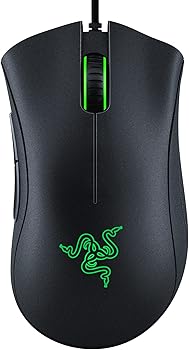
The ideal sensitivity largely depends on the player’s preference, style, and goals. However, understanding the fundamental principles behind mouse sensitivity can help you find what works best for you with the Razer Deathadder Essential Mouse.
In this comprehensive guide, we will explore various aspects of mouse sensitivity in FPS games, help you understand what constitutes the best sensitivity, and offer practical advice on finding your optimal settings for the best budget gaming mouse.
What Is Mouse Sensitivity in FPS?
Mouse sensitivity in FPS games refers to how much your in-game character or crosshair moves in response to the movement of your mouse. In simple terms, it is the relationship between the physical movement of your mouse and the movement it translates to on your screen. A higher sensitivity means your character or crosshair will move farther for a given distance of mouse movement, while a lower sensitivity results in slower or more precise movements.
DPI vs. Sensitivity: What’s the Difference?
One key concept to grasp when discussing mouse sensitivity is understanding the difference between DPI (dots per inch) and in-game sensitivity.
-
DPI
refers to the sensitivity of your mouse itself. A higher DPI means the mouse is more sensitive to movements, translating small physical movements into large in-game motions.
-
In-game sensitivity
is an adjustment that occurs within the game itself, scaling the movement detected by the mouse according to your personal preferences.
For example, you might have a mouse with 800 DPI and set your in-game sensitivity to 2. This combination determines how much your cursor or crosshair moves in the game relative to your mouse movements.
Both DPI and in-game sensitivity work together to give you the final feel of your mouse in an FPS game.
High Sensitivity vs. Low Sensitivity: Pros and Cons
Mouse sensitivity is highly subjective, and players have different opinions on what works best. Broadly, sensitivity levels fall into two categories: high sensitivity and low sensitivity. Each has its advantages and drawbacks.
High Sensitivity
A high sensitivity setting means that small physical movements of the mouse will result in significant movements on the screen.
This can be beneficial in certain scenarios:
-
Fast Movement
High sensitivity allows for quicker reactions, making it easier to turn around and engage enemies coming from behind or from unexpected angles.
-
Close Quarters Combat
In games where engagements tend to happen at close range, a high sensitivity can help you aim and shoot quickly without having to move your mouse a lot.
-
360-Degree Awareness
High sensitivity can help with maintaining a high level of awareness of your surroundings. You can quickly scan areas and react to threats without large hand movements.
Disadvantages of High Sensitivity
-
Precision Issues
A key downside of high sensitivity is the potential for a lack of precision. Small and subtle movements of the mouse can result in larger-than-expected movements in the game, making it difficult to aim accurately at distant targets.
-
Overcompensation
With high sensitivity, there’s a tendency to “overshoot” your target, moving past them instead of landing directly on them.
Low Sensitivity
Low sensitivity involves slower and more controlled movement of the crosshair or character in response to the physical movement of the mouse. This is typically preferred by players who prioritize accuracy and precision, especially for long-range engagements.
-
Precision and Accuracy
Low sensitivity gives you more control over your aim. It’s easier to make small adjustments to your crosshair, which is crucial for landing headshots or hitting distant targets.
-
Sniping
If you play games that involve long-range engagements, a lower sensitivity allows for greater precision when aiming at small, faraway targets.
-
Reduced Overcompensation
Lower sensitivity minimizes the risk of overshooting or overcompensating when aiming at fast-moving targets.
Disadvantages of Low Sensitivity
-
Slower Turn Speed
A major downside of low sensitivity is that it requires larger hand movements to turn around or aim quickly. This can put you at a disadvantage in fast-paced situations where quick reactions are necessary.
-
Fatigue
Using low sensitivity can cause fatigue over extended periods, as your arm and wrist may tire from making larger movements constantly.
Finding the Best Mouse Sensitivity for You
There’s no magic formula to determine the perfect mouse sensitivity for FPS games. It ultimately comes down to personal preference, gaming experience, and playstyle. However, here are some tried and tested methods to help you find a good mouse sensitivity for FPS games:
Start with a Baseline
The first step is to set a baseline by experimenting with different sensitivity settings. Many pro players use a DPI setting between 400 and 800, paired with an in-game sensitivity between 1 and 2. Starting within this range can give you a good sense of what works and what doesn’t.
Adjust Sensitivity Based on Your Playstyle
-
Aggressive Players
If you tend to play aggressively, rushing toward enemies and engaging in close-range combat, you may want to lean toward higher sensitivity settings. Fast-paced, close-quarters combat typically benefits from quick movements.
-
Defensive or Sniping Players
On the other hand, if your playstyle involves holding angles, sniping, or playing defensively, lower sensitivity settings will likely suit you better. These roles require precise aiming and are less reliant on fast turning.
Conduct Aim Training
Aim training is a great way to test and refine your sensitivity settings. Many FPS games offer practice modes or aim training courses that can help you gauge your performance at different sensitivity levels. By practicing against bots or in custom training scenarios, you can evaluate how your aim improves with different sensitivity settings.
Use Mouse Pads and Desk Space Effectively
One important factor to consider when choosing mouse sensitivity is your available desk space and mouse pad. Low sensitivity settings often require larger movements, so a large mouse pad is essential to avoid running out of room. High sensitivity players, on the other hand, don’t need as much space but should still invest in a quality mouse pad to ensure smooth movement.
Use the 360-Degree Rule
One popular method for finding an optimal sensitivity is the “360-degree rule.”
Here’s how it works:
- Find a flat surface or wall in the game.
- Stand still and place your crosshair on a reference point.
- Move your mouse horizontally while attempting to make a full 360-degree turn in the game.
- Measure the distance you moved your mouse on your mouse pad to complete the 360-degree turn.
A good rule of thumb is that your mouse should travel between 25 to 50 centimeters to complete a full 360-degree turn. This distance strikes a balance between the precision needed for long-range shots and the speed required for quick movements.
Experiment with Gradual Adjustments
Once you’ve established a comfortable baseline sensitivity, experiment with small incremental changes. If your sensitivity feels slightly too fast, try lowering it by small amounts (e.g., 0.1 or 0.05 in-game sensitivity units). Conversely, if it’s too slow, increase it gradually. Fine-tuning over time will help you land on the optimal setting for your playstyle.
Pros’ Sensitivity Settings
Many professional FPS players have shared their mouse sensitivity settings, which can offer insights into what works at the highest levels of competition.
For example:
-
CS and Valorant Pros
Many pros use DPI settings of 400 or 800, with in-game sensitivity between 0.5 and 2.0. They often use low to medium sensitivity to achieve pinpoint accuracy.
-
Overwatch and Apex Legends Pros
In more fast-paced games like Overwatch and Apex Legends, some players prefer slightly higher sensitivity settings for faster movement and response times. A DPI of 800 with in-game sensitivity between 4.0 and 6.0 is common.
While it’s tempting to copy a professional player’s settings, remember that their sensitivity is optimized for their specific style, setup, and preferences. Use their settings as a reference point but don’t rely on them exclusively. Instead, adjust based on what feels comfortable and effective for you.
Sensitivity and Muscle Memory
One of the most important aspects of finding a good mouse sensitivity for FPS games is building muscle memory. Muscle memory refers to the process of training your hand and arm movements to become second nature. Once your muscle memory is developed, you will be able to react more quickly and aim more accurately without consciously thinking about your movements.
How to Build Muscle Memory
-
Consistency
Stick to one sensitivity setting once you’ve found something that works. Continuously changing your sensitivity can hinder the development of muscle memory.
-
Repetition
Practice is key. Play regularly, and focus on making consistent movements. Over time, you’ll notice improvements in your aim as your muscle memory develops.
Tools for Testing Mouse Sensitivity
Several tools and applications can help you refine your mouse sensitivity settings. Here are a few you might consider:
-
Aim Trainers
Applications like KovaaK’s FPS Aim Trainer or Aim Lab allow you to practice specific aiming scenarios and track your performance over time. These programs often include customizable sensitivity settings so you can experiment with different options.
-
Online Calculators
Websites like Mouse-Sensitivity.com provide conversion tools to help you translate your settings across different games, ensuring consistency in your sensitivity across titles.
You Might Be Interested In
- What Is The Best Redragon Mouse For FPS Games?
- What Is Graphics Processing Unit?
- Which Is Better Razer Or Cooler Master Mouse?
- TENMOS T12 Wireless Gaming Mouse Review
- Why are Wireless Gaming Mouse So Expensive?
Conclusion
Determining a good mouse sensitivity for FPS games is a deeply personal process that involves trial and error, practice, and adaptation. While there are general guidelines—such as starting with a DPI of 400-800 and in-game sensitivity of 1-2—the best sensitivity for you will depend on your playstyle, game of choice, and preferences.
Remember that there is no universally “best” sensitivity; instead, it’s about finding what feels comfortable and effective for you. Balancing speed and precision, adjusting to your setup, and building muscle memory are key steps toward mastering your mouse sensitivity. By experimenting with settings, practicing aim training, and paying attention to your movements, you’ll eventually find your ideal sensitivity setting and take your FPS gameplay to the next level.
FAQs about What Is A Good Mouse Sensitivity For Fps?
What is the ideal DPI for FPS gaming?
The ideal DPI (dots per inch) for FPS gaming generally falls between 400 and 800. This range is preferred by many professional players and is considered a good balance between sensitivity and precision. A DPI of 400 is often favored for its consistency and lower sensitivity, allowing for more controlled and precise movements.
A DPI of 800 provides slightly higher sensitivity, which can be useful for faster reaction times. However, the best DPI setting ultimately depends on your personal preference and the specific requirements of the game you are playing.
How do I adjust my in-game sensitivity for FPS games?
To adjust your in-game sensitivity for FPS games, follow these steps:
- Access Sensitivity Settings: Open the game’s settings menu and locate the mouse or control settings. Here, you will find an option to adjust in-game sensitivity.
- Set a Baseline: Start with a default or recommended sensitivity setting, typically between 1 and 2.
- Test and Adjust: Move your mouse around to see how it feels. If the sensitivity feels too high or too low, make small incremental adjustments.
- Use Training Tools: Utilize aim training programs or practice modes within the game to refine your sensitivity settings. Aim for a sensitivity that allows you to make accurate and controlled movements.
- Save and Refine: Once you find a setting that feels comfortable, stick with it and continue practicing to build muscle memory.
What are the advantages of low mouse sensitivity in FPS games?
Low mouse sensitivity offers several advantages in FPS games:
- Increased Precision: Low sensitivity allows for finer control over aiming. This is particularly useful for long-range engagements and when aiming for headshots.
- Reduced Overshooting: With lower sensitivity, you’re less likely to overshoot your target, which helps in making accurate shots.
- Better for Sniping: Snipers benefit from low sensitivity because it enables precise adjustments to their aim over long distances.
However, the trade-off is that low sensitivity can make quick turns and reactions more challenging, which might be a disadvantage in fast-paced scenarios.
How can I find the best mouse sensitivity for my playstyle?
Finding the best mouse sensitivity for your playstyle involves a few key steps:
- Identify Your Playstyle: Determine whether you play aggressively or defensively. Aggressive players may prefer higher sensitivity for quick reactions, while defensive players might favor lower sensitivity for precise aiming.
- Experiment: Start with a baseline sensitivity setting and adjust based on your comfort and performance in different situations.
- Practice Regularly: Spend time in practice modes or aim training programs to test and refine your sensitivity settings.
- Use the 360-Degree Rule: Measure how far you move your mouse to make a full 360-degree turn in the game. Aim for a distance that balances speed and precision.
- Seek Feedback: Consider watching professional players or consulting with others who share your playstyle for additional insights.
How does mouse pad size affect sensitivity?
Mouse pad size plays a significant role in how effective your mouse sensitivity settings will be:
- Large Mouse Pads: A large mouse pad provides ample space for low sensitivity settings, allowing for smooth and controlled movements over longer distances. This is ideal for players who prefer lower sensitivity and need more room for extensive mouse movements.
- Small Mouse Pads: A smaller mouse pad is more suited for higher sensitivity settings, where less physical movement is needed to achieve the same amount of in-game movement. However, using a high sensitivity on a small mouse pad can sometimes lead to erratic movements or lack of precision.
