


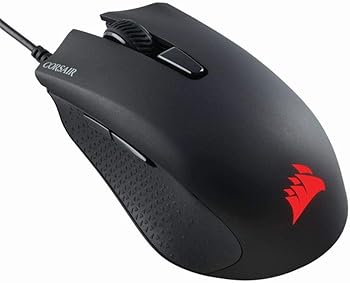
The Corsair Harpoon is a popular gaming mouse known for its lightweight design, responsive performance, and customizable features. One of the essential aspects of any gaming mouse is its DPI (Dots Per Inch) settings, which directly affect the sensitivity and precision of the cursor. Adjusting the DPI settings can greatly influence your gaming experience, particularly in fast-paced games that require precise movements.
If you’re wondering, “How do I get 400 DPI on my Corsair Harpoon?” this comprehensive guide will walk you through the steps, ensuring you achieve the desired DPI setting and optimize your gaming performance with the Best Budget Gaming Mouse.
What is DPI and Why is it Important?
DPI (Dots Per Inch) is a measure of how sensitive a mouse is. The higher the DPI, the farther the cursor on your screen moves when you move the mouse. Conversely, lower DPI settings mean more precise movements.
Importance of DPI in Gaming
For gamers, having the right DPI setting is crucial. A higher DPI is beneficial for games that require quick reflexes, like first-person shooters (FPS), where fast movements are necessary. On the other hand, a lower DPI setting is ideal for games that require precision, such as strategy games or when performing tasks that require fine control. Setting your Corsair Harpoon to 400 DPI can provide you with greater control, especially in scenarios where accuracy is paramount.
Corsair Harpoon’s DPI Settings
The Corsair Harpoon comes with adjustable DPI settings that can be customized using the Corsair iCUE software. By default, the Harpoon mouse supports five different DPI settings that can be toggled using a button on the mouse. These settings are usually pre-configured at varying levels such as 800, 1500, 3000, etc. However, you can easily customize these settings, including setting the DPI to 400.
Step-by-Step Guide to Setting 400 DPI on Your Corsair Harpoon
Step 1: Installing Corsair iCUE Software
The first step in adjusting your Corsair Harpoon’s DPI settings is to install the Corsair iCUE software. This software allows you to customize the DPI settings, RGB lighting, and other features of your Corsair peripherals.
-
Download iCUE
Visit the official Corsair website and navigate to the iCUE software download page. Download the software that corresponds with your operating system.
-
Install iCUE
Once the download is complete, run the installer and follow the on-screen instructions to install the software.
-
Launch iCUE
After installation, launch the iCUE software. The software will automatically detect your Corsair Harpoon mouse.
Step 2: Accessing DPI Settings
With the iCUE software running and your Corsair Harpoon connected, you can now access and adjust the DPI settings.
-
Select Your Device
On the iCUE dashboard, select your Corsair Harpoon mouse from the list of connected devices.
-
Navigate to DPI Settings
Once you’ve selected your mouse, click on the “DPI” tab. This tab allows you to customize the DPI levels that are assigned to the DPI toggle button on the mouse.
Step 3: Customizing DPI Levels
Now that you’re in the DPI settings menu, you can customize the DPI levels, including setting one of them to 400 DPI.
-
Adjust DPI Levels
In the DPI settings menu, you’ll see several preset DPI levels. Click on one of these levels to customize it. Use the slider or input box to set the DPI value to 400.
-
Save Your Settings
After setting the DPI to 400, ensure you save your changes. The 400 DPI setting will now be assigned to one of the DPI profiles on your mouse.
Step 4: Testing and Fine-Tuning
After setting your Corsair Harpoon to 400 DPI, it’s essential to test the new sensitivity setting in your preferred gaming environment.
-
Launch a Game or Application
Open a game or application that you frequently use and test the cursor movement at 400 DPI. Pay attention to how it feels and whether it meets your precision and speed needs.
-
Fine-Tune if Necessary
If the 400 DPI setting doesn’t feel quite right, return to the iCUE software and make minor adjustments. You may find that a setting slightly above or below 400 DPI provides a better experience for your specific needs.
Troubleshooting Common Issues
Despite its ease of use, you might encounter some challenges when setting your Corsair Harpoon to 400 DPI. Here are some common issues and how to troubleshoot them:
Issue 1: iCUE Software Not Detecting the Corsair Harpoon
If the iCUE software isn’t detecting your mouse, try the following steps:
-
Check Connections
Ensure that your mouse is properly connected to your computer. Try plugging it into a different USB port if necessary.
-
Update Software
Make sure that you’re using the latest version of the iCUE software. Updates often include bug fixes that might resolve detection issues.
-
Reinstall iCUE
If the software still doesn’t detect your mouse, try uninstalling and reinstalling iCUE.
Issue 2: DPI Settings Not Saving
If your DPI settings aren’t saving, or if the mouse reverts to its default DPI settings after a restart:
-
Check for Software Updates
Ensure that your iCUE software is up to date.
-
Try a Different USB Port
Sometimes, using a different USB port can resolve issues with saving settings.
-
Reset the Mouse
As a last resort, you can try resetting your Corsair Harpoon to its factory settings through iCUE and then reconfiguring your DPI settings.
Issue 3: Inconsistent DPI Performance
If you notice that your mouse’s DPI performance is inconsistent, such as sudden jumps in sensitivity:
-
Check for Dirt or Debris
Clean the sensor on the bottom of the mouse, as dirt or debris can interfere with its accuracy.
-
Surface Compatibility
Ensure you’re using the mouse on a suitable surface. Some surfaces can cause the sensor to behave unpredictably.
-
Update Firmware
Check if there’s a firmware update available for your mouse through iCUE, as this can often improve performance.
Optimizing Your Corsair Harpoon for Gaming
Beyond setting your Corsair Harpoon to 400 DPI, there are several other ways you can optimize the mouse for gaming.
Customize Button Assignments
The Corsair Harpoon features six programmable buttons. Using iCUE, you can customize these buttons to perform various functions, such as executing complex macros or activating in-game abilities. Customizing your buttons can give you a competitive edge in gaming, allowing you to perform actions more quickly and efficiently.
Fine-Tune Lift-Off Distance
Lift-off distance refers to how high you can lift the mouse off the surface before it stops tracking. A lower lift-off distance is generally preferred for FPS games, as it allows for more consistent tracking during quick movements. You can adjust the lift-off distance of your Corsair Harpoon through iCUE to match your playstyle.
Calibrate the Mouse to Your Surface
The Corsair Harpoon also allows you to calibrate its sensor to the surface you’re using. This ensures that the sensor is optimized for the specific surface, whether it’s a mouse pad, desk, or another material. Proper calibration can improve tracking accuracy and overall performance.
You Might Be Interested In
- What Is The Main Difference Between RAM and ROM?
- How To Pair A Uhuru Mouse?
- How Do I Turn On Mouse Pairing Mode?
- Why are Wireless Gaming Mouse So Expensive?
- How Does GPU Processing Work?
Conclusion
Setting your Corsair Harpoon to 400 DPI is a straightforward process that can significantly improve your gaming experience, especially in scenarios where precision is key. By following this comprehensive guide, you’ll be able to adjust your DPI settings easily and fine-tune your mouse to meet your specific needs. Remember, the ideal DPI setting is subjective and depends on your gaming style, so don’t hesitate to experiment until you find the perfect sensitivity level.
In addition to adjusting DPI, take advantage of other customization options available through the Corsair iCUE software, such as button assignments, lift-off distance, and surface calibration, to further enhance your gaming performance. Whether you’re a casual gamer or a competitive esports player, optimizing your Corsair Harpoon can give you the control and precision needed to excel in your games.
By now, you should have a clear understanding of how to get 400 DPI on your Corsair Harpoon and the impact it can have on your gaming. With a DPI setting tailored to your preferences, you’ll be able to enjoy a more immersive and responsive gaming experience.
FAQs about How Do I Get 400 Dpi On My Corsair Harpoon?
How Can I Switch Between Different DPI Settings on My Corsair Harpoon During Gameplay?
The Corsair Harpoon mouse is equipped with a dedicated DPI toggle button that allows you to switch between different DPI settings on the fly. This is particularly useful when you need to adjust sensitivity quickly, depending on the situation in your game.
- How It Works: By default, the Harpoon has multiple DPI levels pre-configured (e.g., 800, 1500, 3000, etc.), and pressing the DPI button will cycle through these settings.
- Customizing DPI Levels: Using the Corsair iCUE software, you can customize these DPI levels, including setting one to 400 DPI. Once configured, each press of the DPI button will toggle through your selected settings.
- On-Screen DPI Indicator: If you enable it in iCUE, you can see an on-screen indication of the current DPI level whenever you switch, which helps you know precisely which setting you’re on without having to guess.
Is It Possible to Set a Custom RGB Color Profile that Changes Based on DPI on My Corsair Harpoon?
Yes, the Corsair Harpoon allows you to customize RGB lighting, including setting up color profiles that correspond to different DPI levels. This feature can be particularly helpful as a visual cue to know which DPI setting you’re currently using.
- Setting Up RGB Profiles: In the Corsair iCUE software, navigate to the RGB lighting section for your Harpoon mouse. Here, you can assign specific colors to each DPI level. For example, you can set the lighting to blue for 400 DPI and red for 800 DPI.
- How It Works: Once configured, the mouse will automatically change its RGB lighting color when you switch between DPI settings, giving you an immediate visual indication of the current DPI.
- Additional Customization: Beyond static colors, you can also create dynamic lighting effects that change when you switch DPI, making your gaming setup more personalized and functional.
What Should I Do If My Corsair Harpoon Doesn’t Allow Me to Set the DPI to Exactly 400?
In some cases, the iCUE software might not allow you to set the DPI to exactly 400 due to software limitations or firmware settings.
Here’s what you can do:
- Nearest Possible DPI Setting: If you can’t set the DPI to exactly 400, aim for the closest available setting, such as 350 or 450 DPI. While not precisely 400, these settings can still provide similar control and precision.
- Firmware Update: Ensure your Corsair Harpoon’s firmware is up to date, as newer firmware versions might offer more precise DPI adjustments.
- Contact Support: If setting an exact DPI is crucial for your setup and you cannot achieve it, consider reaching out to Corsair’s customer support. They might offer specific solutions or suggest additional software adjustments.
Can I Save My Custom DPI Settings Directly to the Corsair Harpoon Without Needing iCUE Running?
Yes, the Corsair Harpoon allows you to save custom DPI settings directly to the mouse’s onboard memory. This means you can use your preferred DPI settings even when iCUE isn’t running or if you connect the mouse to a different computer.
- Saving to Onboard Memory: When you set up your DPI preferences in iCUE, there’s an option to save these settings directly to the mouse. This ensures that the mouse retains your configurations even after disconnecting from the original setup.
- Using Multiple Profiles: The onboard memory can store multiple profiles, each with different DPI and button configurations. You can switch between these profiles using the mouse buttons, depending on how you set them up in iCUE.
- Ideal for On-the-Go: This feature is particularly useful if you use your mouse on multiple devices or if you prefer not to run background software during gameplay.
What Is the Best Surface for Using My Corsair Harpoon Mouse at 400 DPI?
The surface you use your Corsair Harpoon on can significantly impact its performance, especially when set to a specific DPI like 400.
Here’s how to choose the best surface for optimal performance:
- Mouse Pad Recommendation: A high-quality gaming mouse pad, preferably one with a smooth, non-reflective surface, is ideal for the Corsair Harpoon. The consistent texture of a mouse pad ensures accurate sensor readings, which is crucial when using a low DPI setting like 400.
- Surface Calibration: The Corsair iCUE software includes a surface calibration feature that allows the mouse to optimize its sensor for the specific surface you’re using. Run this calibration to ensure the sensor performs accurately at 400 DPI.
- Avoid Reflective or Uneven Surfaces: Reflective or uneven surfaces can interfere with the sensor’s ability to track movement accurately, leading to inconsistent performance. For the best results, stick to a dedicated mouse pad designed for gaming.
These FAQs should provide additional clarity and help you make the most of your Corsair Harpoon mouse, especially when customizing it for specific DPI settings like 400.
