

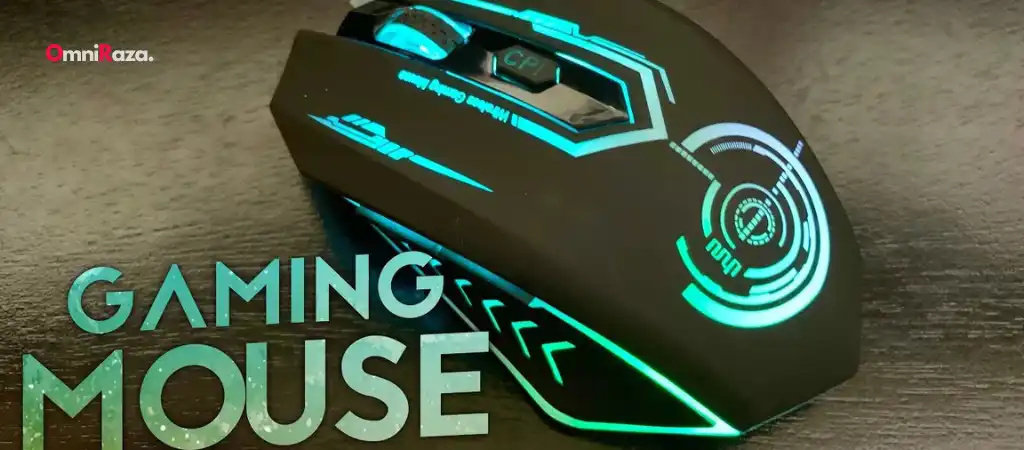
In today’s tech-savvy world, wireless devices have become an integral part of our daily routines, and a mouse is no exception. The Uhuru mouse, known for its efficiency and reliability, is one such device that offers a seamless user experience. However, to fully enjoy the benefits of a Uhuru mouse, it’s essential to know how to pair it correctly with your computer or other devices.
This guide will walk you through the process step by step, ensuring that you can pair a Uhuru mouse or the best budget gaming mouse with ease.
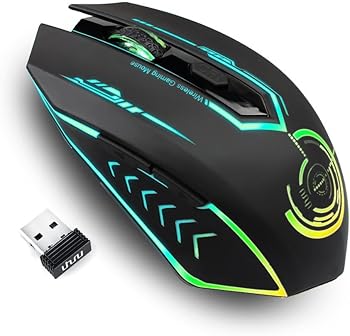
Uhuru Mouse
Uhuru is a brand that specializes in creating various computer peripherals, including keyboards and mice. Their products are known for their user-friendly designs, affordability, and functionality. The Uhuru mouse typically comes with wireless connectivity, allowing users to avoid the clutter of cables and enjoy the freedom of movement.
Why Choose a Uhuru Mouse?
-
Wireless Connectivity
Uhuru mice are wireless, providing users with a hassle-free experience, free from tangled wires.
-
Ergonomic Design
Many models are designed with ergonomics in mind, making them comfortable to use for long periods.
-
Affordability
Uhuru offers cost-effective solutions without compromising on quality.
-
Versatility
Compatible with various devices, including PCs, laptops, and tablets.
Steps to Pair a Uhuru Mouse
To pair a Uhuru mouse successfully, it is essential to follow the correct steps. The process can vary slightly depending on whether you are using Bluetooth or a USB receiver, but the general guidelines remain the same.
Step 1: Unbox and Prepare Your Uhuru Mouse
Before you start the pairing process, make sure that your Uhuru mouse is unboxed and that all the necessary components are available.
This typically includes:
- The Uhuru mouse itself.
- A USB receiver (if your model uses one).
- Batteries (if required).
- User manual for reference.
Step 2: Power On the Mouse
Most Uhuru mice require batteries to operate, so the first step is to insert the batteries. Once the batteries are in place, turn on the mouse using the power switch located on the underside of the device. The power indicator light should turn on, signaling that the mouse is ready to pair.
Step 3: Choose Your Pairing Method
Uhuru mice generally offer two pairing methods: Bluetooth and USB receiver. The method you choose will depend on your device’s capabilities.
Pairing via Bluetooth
-
Enable Bluetooth on Your Device
Ensure that the Bluetooth feature is turned on in your computer, tablet, or smartphone. You can usually find this option in the device’s settings menu.
-
Put the Mouse in Pairing Mode
Most Uhuru mice have a specific button that you need to press to enter pairing mode. This button is often located on the underside of the mouse or as a dedicated button near the power switch.
-
Search for the Device
On your computer or other device, go to the Bluetooth settings and search for new devices. Your Uhuru mouse should appear in the list of available devices.
-
Select the Mouse
Click on the name of the mouse to start the pairing process. A notification should appear on the screen once the pairing is successful.
Pairing via USB Receiver
-
Plug in the USB Receiver
Insert the USB receiver into an available USB port on your computer or laptop.
-
Automatic Connection
The mouse should automatically connect to the USB receiver. If it doesn’t, check if the mouse is turned on and that the batteries are inserted correctly.
-
Driver Installation
Some operating systems may automatically install the necessary drivers. If not, you may need to download them from the Uhuru website.
Step 4: Test the Mouse
After pairing, it’s crucial to test the mouse to ensure it’s functioning correctly. Move the mouse around and check if the cursor on the screen moves in sync with your actions. Test the buttons and scroll wheel as well.
Step 5: Troubleshooting
If your Uhuru mouse isn’t pairing, consider the following troubleshooting tips:
-
Check the Batteries
Ensure that the batteries are fresh and correctly installed.
-
Restart Your Device
Sometimes, restarting your computer or device can resolve connectivity issues.
-
Re-Pair the Mouse
If the connection fails, try unpairing and then re-pairing the mouse.
-
Update Drivers
Make sure your device’s Bluetooth drivers are up to date.
Common Issues and Solutions When Pairing a Uhuru Mouse
The Mouse is Not Detected
One common issue users face is that the mouse is not detected during the pairing process.
This can happen due to several reasons:
-
Bluetooth Interference
Ensure that there are no other Bluetooth devices causing interference.
-
Out of Range
Make sure that the mouse is within the effective range of the Bluetooth or USB receiver.
-
Low Battery
A low battery can cause the mouse to not be detected. Replace the batteries if necessary.
The Mouse Paired but Does Not Work
If the mouse pairs but does not work, consider the following solutions:
-
Driver Issues
Check if the correct drivers are installed and up to date.
-
Reboot Your Device
Sometimes a simple reboot can fix the issue.
-
Try a Different USB Port
If using a USB receiver, try plugging it into a different USB port.
Lag or Delay in Mouse Movement
Lag or delay can be frustrating when using a wireless mouse.
Here are some possible solutions:
-
Reduce Distance
Make sure the mouse is not too far from the receiver or the device.
-
Interference
Remove any devices that could be causing interference, such as Wi-Fi routers or other wireless devices.
-
Battery Replacement
Low battery power can cause lag. Replacing the batteries might solve the problem.
Maintaining Your Uhuru Mouse for Optimal Performance
To ensure your Uhuru mouse continues to function well, it’s essential to maintain it properly.
Here are some tips:
Clean the Mouse Regularly
Dirt and debris can accumulate on the surface of your mouse, affecting its performance. Use a soft cloth to clean the mouse regularly. For stubborn dirt, a small amount of rubbing alcohol can be used.
Store the Mouse Properly
When not in use, store your mouse in a safe place to avoid damage. If your mouse comes with a carrying case, use it to protect the mouse when traveling.
Battery Maintenance
If your Uhuru mouse uses batteries, it’s essential to maintain them properly. Remove the batteries if you do not plan to use the mouse for an extended period. This will prevent battery leakage, which can damage the mouse.
Keep Software Updated
Uhuru may release firmware updates or drivers to improve performance or add new features. Check the Uhuru website regularly to see if any updates are available for your mouse model.
Advanced Tips for Using Your Uhuru Mouse
Once you’ve successfully paired your Uhuru mouse and have used it for a while, you might want to explore some advanced features and customization options.
Customizing Buttons
Some Uhuru mice come with programmable buttons that allow you to customize their functions. This can be done through software provided by Uhuru or third-party applications. You can assign specific tasks to buttons, such as opening applications or performing complex macros.
DPI Settings
DPI (Dots Per Inch) refers to the sensitivity of the mouse. Some Uhuru models allow you to adjust the DPI settings to suit your needs. A higher DPI means the cursor moves faster, while a lower DPI offers more precise control. This feature is particularly useful for gamers or graphic designers who require different sensitivity levels.
Using the Mouse for Gaming
If you plan to use your Uhuru mouse for gaming, there are a few additional considerations:
-
Polling Rate
This refers to how often the mouse reports its position to the computer. A higher polling rate can lead to smoother performance in games.
-
Ergonomics
Extended gaming sessions can be hard on your hands. Make sure your Uhuru mouse fits comfortably in your hand to avoid strain.
Pairing with Multiple Devices
Some advanced Uhuru mice allow you to pair with multiple devices simultaneously. This feature is particularly useful if you use the mouse with different computers or devices. Switching between devices is usually done through a button or a software interface.
Battery-Saving Modes
Many Uhuru mice come with battery-saving features that help extend battery life. These modes may automatically reduce the DPI or disable certain features when the mouse is idle. Familiarize yourself with these options to make the most of your mouse’s battery life.
You Might Be Interested In
- What Is The Lifespan Of The Redragon M711?
- How Sensitive Is The Hyperx Pulsefire Mouse?
- How Can I Let ChatGPT See My Computer?
- Does Steelseries Rival 3 Have Dpi?
- Is Razer Deathadder Essential A Gaming Mouse?
Conclusion
Pairing a Uhuru mouse is a straightforward process, whether you are using Bluetooth or a USB receiver. By following the steps outlined in this guide, you can ensure a seamless connection and enjoy the full functionality of your wireless mouse. Whether you’re a casual user, a professional, or a gamer, the Uhuru mouse offers a versatile and reliable solution to meet your needs.
Taking care of your Uhuru mouse by maintaining its cleanliness, ensuring the batteries are fresh, and keeping the software updated will help prolong its lifespan and maintain optimal performance. For those looking to customize their experience, exploring advanced features like button programming, DPI settings, and multi-device pairing can enhance your workflow or gaming sessions.
In conclusion, knowing how to pair a Uhuru mouse is essential for maximizing its benefits. With the knowledge from this guide, you should be able to pair your Uhuru mouse with ease and resolve any issues that may arise during the process. Whether you are using it for everyday tasks or specific purposes like gaming, the Uhuru mouse can be an excellent tool in your tech arsenal.
FAQs about How To Pair A Uhuru Mouse?
What should I do if my Uhuru mouse is not detected by my device?
If your Uhuru mouse is not detected during the pairing process, there are several steps you can take to resolve the issue:
- Ensure Bluetooth is Enabled: If you are pairing via Bluetooth, confirm that the Bluetooth feature is turned on in your device’s settings. Also, make sure that the mouse is in pairing mode.
- Check for Interference: Bluetooth devices can be affected by interference from other wireless devices. Ensure there are no other active Bluetooth devices nearby that could be causing interference.
- Verify the Mouse is in Range: Ensure that the mouse is within the effective range of your device. If it’s too far away, the device might not detect the mouse.
- Check the Batteries: Low battery power can prevent the mouse from being detected. Replace the batteries with fresh ones and try again.
- Restart Your Device: Sometimes, a simple restart of your computer, tablet, or smartphone can resolve connectivity issues.
If none of these solutions work, consider re-pairing the mouse or updating your device’s Bluetooth drivers.
How do I pair my Uhuru mouse using the USB receiver?
To pair a Uhuru mouse using the USB receiver, follow these steps:
- Plug in the USB Receiver: Insert the USB receiver into an available USB port on your computer or laptop. The receiver is usually pre-paired with the mouse, so no additional setup should be needed.
- Turn On the Mouse: Ensure that the mouse is turned on by flipping the power switch, usually located on the underside of the device.
- Automatic Connection: The mouse should automatically connect to the USB receiver. If the connection does not occur immediately, ensure the batteries are properly installed and the mouse is powered on.
- Driver Installation: On most devices, the necessary drivers for the Uhuru mouse will install automatically when the USB receiver is plugged in. If this does not happen, you may need to visit the Uhuru website to download and install the appropriate drivers manually.
- Test the Connection: Move the mouse to check if the cursor on the screen responds. Test the buttons and scroll wheel to ensure all functions are working properly.
How can I fix lag or delay in my Uhuru mouse’s movement?
Lag or delay in a wireless mouse can be frustrating.
Here are some steps to resolve this issue:
- Check the Distance: Ensure that the mouse is within the recommended range from the USB receiver or Bluetooth device. Too much distance can cause lag.
- Remove Interference: Wireless devices, Wi-Fi routers, and other electronics can interfere with the mouse’s signal. Try to reduce or eliminate sources of interference by moving the mouse closer to the device or relocating other electronics.
- Replace the Batteries: Low battery power is a common cause of lag in wireless mice. Replacing the batteries can often resolve the issue.
- Update Drivers: Ensure that your device’s drivers, particularly Bluetooth or USB drivers, are up to date. Updated drivers can improve the performance and responsiveness of your mouse.
- Reduce CPU Load: If your computer is running multiple heavy applications simultaneously, it may affect the mouse’s performance. Close unnecessary programs to free up resources.
What are the benefits of using the Bluetooth pairing method for my Uhuru mouse?
Using Bluetooth to pair your Uhuru mouse offers several benefits:
- No Need for USB Ports: Bluetooth pairing frees up your USB ports for other devices, which is especially useful for laptops with limited ports.
- Enhanced Mobility: With Bluetooth, you don’t need to worry about carrying around a USB receiver, making the mouse more portable and convenient, especially when traveling.
- Compatibility with Multiple Devices: Many Bluetooth-enabled Uhuru mice can pair with multiple devices, such as smartphones, tablets, and laptops. This is ideal if you need to switch between devices frequently.
- No Interference from USB Devices: Since the connection is wireless and not reliant on a USB receiver, there’s less chance of interference from other USB-connected peripherals.
- Energy Efficiency: Bluetooth connections are generally optimized to use less power, which can extend the battery life of your mouse compared to using a USB receiver.
How do I maintain and clean my Uhuru mouse to ensure long-term performance?
Proper maintenance of your Uhuru mouse is essential for ensuring its long-term performance.
Here’s how to do it:
- Regular Cleaning: Dust, dirt, and grime can accumulate on the surface and in the crevices of your mouse. Clean it regularly with a soft, dry cloth. For more stubborn dirt, slightly dampen the cloth with water or use rubbing alcohol.
- Avoid Harsh Environments: Keep the mouse away from extreme temperatures, moisture, and direct sunlight, as these can damage the internal components.
- Battery Maintenance: If your Uhuru mouse uses batteries, ensure they are replaced when they run low. Remove the batteries if you don’t plan to use the mouse for an extended period to prevent leakage.
- Proper Storage: Store the mouse in a protective case or a safe place when not in use, especially when traveling. This will protect it from dust, dirt, and physical damage.
- Firmware Updates: Occasionally, check the Uhuru website for firmware updates that may enhance performance or add new features. Keeping your mouse’s firmware up to date ensures it continues to work efficiently.
